Registrations open Tuesday 11 August 2026.
Registrations close Tuesday 13 October 2026 (please note venues may be fully booked before this date).
How to register
Select an option to see registration instructions
Grade 12, 2026 School Leaver
- Complete your National Online Application (NOA) through DHERST (https://apply.dherst.gov.pg/Apply/Account/Login).
- Click the purple ‘Register’ button at the bottom of your DHERST NOAS ‘My Data’ page.
This will take you to the ACER STAT PNG registration site and will prefill your personal information (this button will only be visible if your course selections require you to take STAT PNG). - Click the green ‘Continue STAT PNG Registration’ button.
- Enter your Identification, Test Place and Time.
- Read the Legal Declaration
- Click the ‘Complete’ button.
Non-School Leaver
Go to https://statpngreg.acer.edu.au/ and follow the prompts for non-school leavers. You must have an ACER account to register to sit STAT PNG.
If you sat STAT PNG in a previous year, please log in using your previous ACER Account username and password. If you have forgotten your log in details, you can search for them by clicking on the link ‘I sat STAT PNG in a previous year and can’t remember my log in’.
If you need to create a new account, you must have a unique and valid email address before completing your test registration. More information on creating an ACER account and email address.
- Click the 'Register for STAT PNG' button.
- Enter your personal details, identification, test place and time.
- Read the Legal Declaration.
- Click the ‘Complete’ button.
Applicant registration details
Information in the STAT PNG registration is not entered by ACER. It has either been completed by the applicant or by information received from NOAS (school-leavers). We are not responsible for the accuracy of the information. It is up to applicants to confirm that the information is correct.
Venue choices
Venue locations are chosen by applicants. Once venues fill up, they are no longer available to select during the registration process. Venue selections are not guaranteed until registrations are complete.
After following the registration process above, you will be sent a confirmation message and email (if provided). This message contains your reserved test date, time, location, instructions for payment, as well as other important information.
Common questions
-
As a school leaver you should correct your registration details by changing any personal information via DHERST and that will update your STAT PNG registration information as well.
As a non-school leaver you need to email statpng@acer.org with the correct details and ACER will change this information on your ACER account.
-
That venue and time is likely to be fully booked. Please email statpng@acer.org or select another venue and date/time.
-
For school leaver - If you are a school leaver and wish to change any personal information, you should request it through DHERST and that will update your STAT PNG registration information as well.
Non-school leaver – If you are a non-school leaver and wish to change any personal information you need to email statpng@acer.org
-
If you wish to change your test sessions (venue and time) you need to log in to your ACER Account and amend your test session.
-
Check that your email is correct on your ACER registration. Then email statpng@acer.org and we will resend you the information.
Payment
- Payment information is automatically sent to you when your registration is complete.
- Payment information is available in your ACER Account messaging system.
- You must follow the instructions for payment in the confirmation message/email.
- The STAT PNG test costs K150.00.
You must complete the payment for your STAT PNG test
- Test Fee Payment Deadline: Friday 16 October 2026
- into the correct bank account
- using an acceptable form of payment
- using the correct payment description
The registration fee covers your STAT PNG test for PNGUoT, UOG, PAU or DWU. This is not a university application fee and does not cover accommodation or any travel expenses that you may incur getting to the test centre. ACER cannot assist with these expenses.
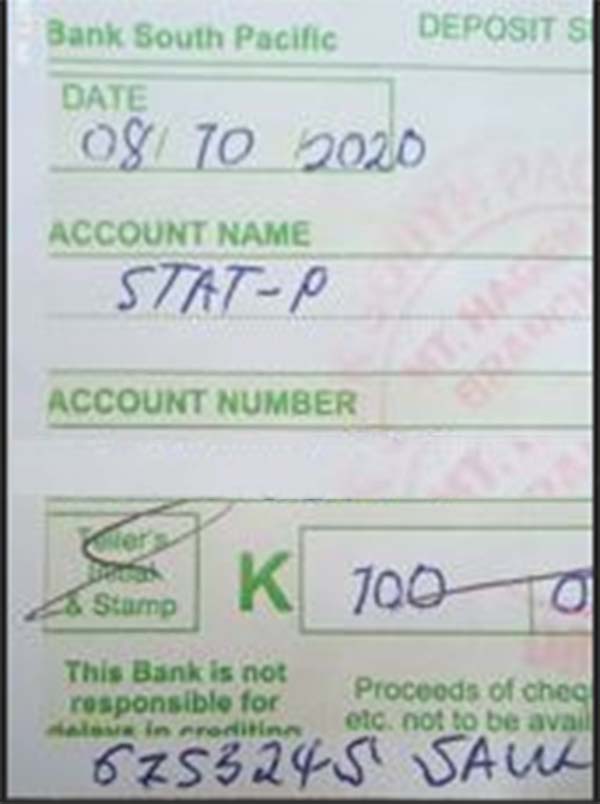
Caption: The payment receipt is a printed receipt that candidates receive on paper.
You must complete payment for your STAT PNG test before the day of your test.
You must bring your payment receipt to the Test Centre. If you do not bring your payment receipt you will not be able to sit your STAT PNG test.
Common questions
-
The STAT PNG payment no longer needs to be verified. However, you will not be admitted to the test centre unless you pay your (non-refundable) K150 test fee and bring the receipt with you to the test.
Test Fee Payment Deadline: Monday, 13th October 2026
-
You will receive a payment receipt from your bank for the cash deposit made towards the STAT PNG fee as per the instructions provided upon your STAT PNG registration.
-
No, the STAT PNG test fee of K150.00 is non-refundable.
-
Payments will NOT be accepted at the test centre or after your test. Test Fee Payment Deadline: Monday, 13th October 2026
-
Payments will NOT be accepted at the test centre or after your test. Test Fee Payment Deadline: Monday, 13th October 2026
-
Test Fee Payment Deadline: 13th October 2026.
Please check with your bank to confirm the payment made by you was successful.
-
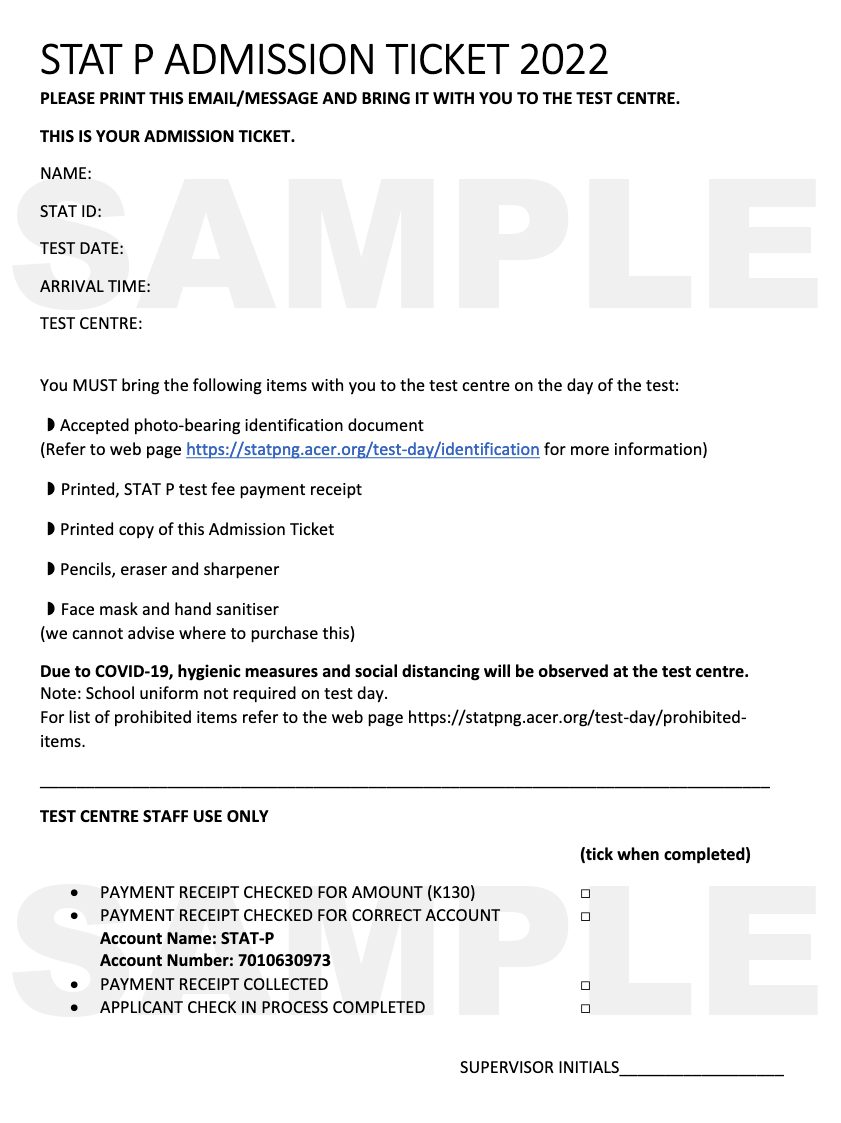
Admission Tickets will be sent to you the week prior to the test.
Admission tickets
You must bring your admission ticket with you to the Test Centre on test day. If you do not bring it you will not be allowed to sit your STAT PNG test.
Admission Tickets will be sent via email:
- to applicants who have sent a photo of their payment receipt.
- to applicants that have successfully completed a STAT PNG registration
Please print your admission ticket if you can and bring it to the test. If you cannot print it, bring an electronic version and the supervisors will write one for you at the test centre
How to change a registration
- Log into your ACER Account
- Click the blue 'change session' button on the Welcome page
- Choose your new session location and date and click 'Update'.
- Log into your ACER Account
- Click the purple 'Manage Registration' button on the Welcome page
- Click the blue 'Edit' button under 'Registration details'
- Edit the required details and click 'Update'.
- Log into your ACER Account
- Click on the menu option 'Account'
- Amend your email address and click 'Update'.
Note: email addresses must be validated by ACER before communications will be sent to them.
School leavers should amend their email address and phone number through NOAS.
You will not be able to change your name, date of birth, gender or SLF number.
To do this, you will need to email statpng@acer.org.